How do you want your legacy to remember what you did for others now and years to come?
What do you want to remember from 2020? How do you want your legacy to remember what you did for...


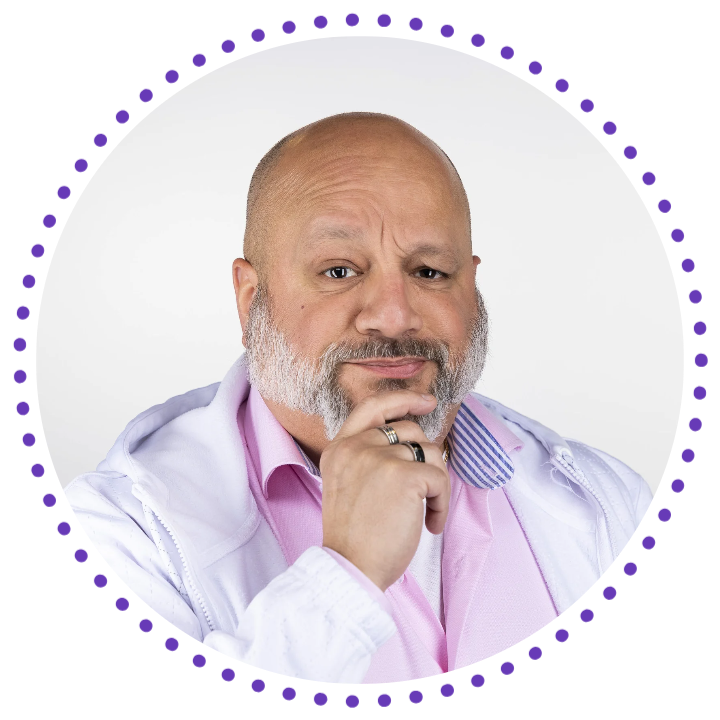
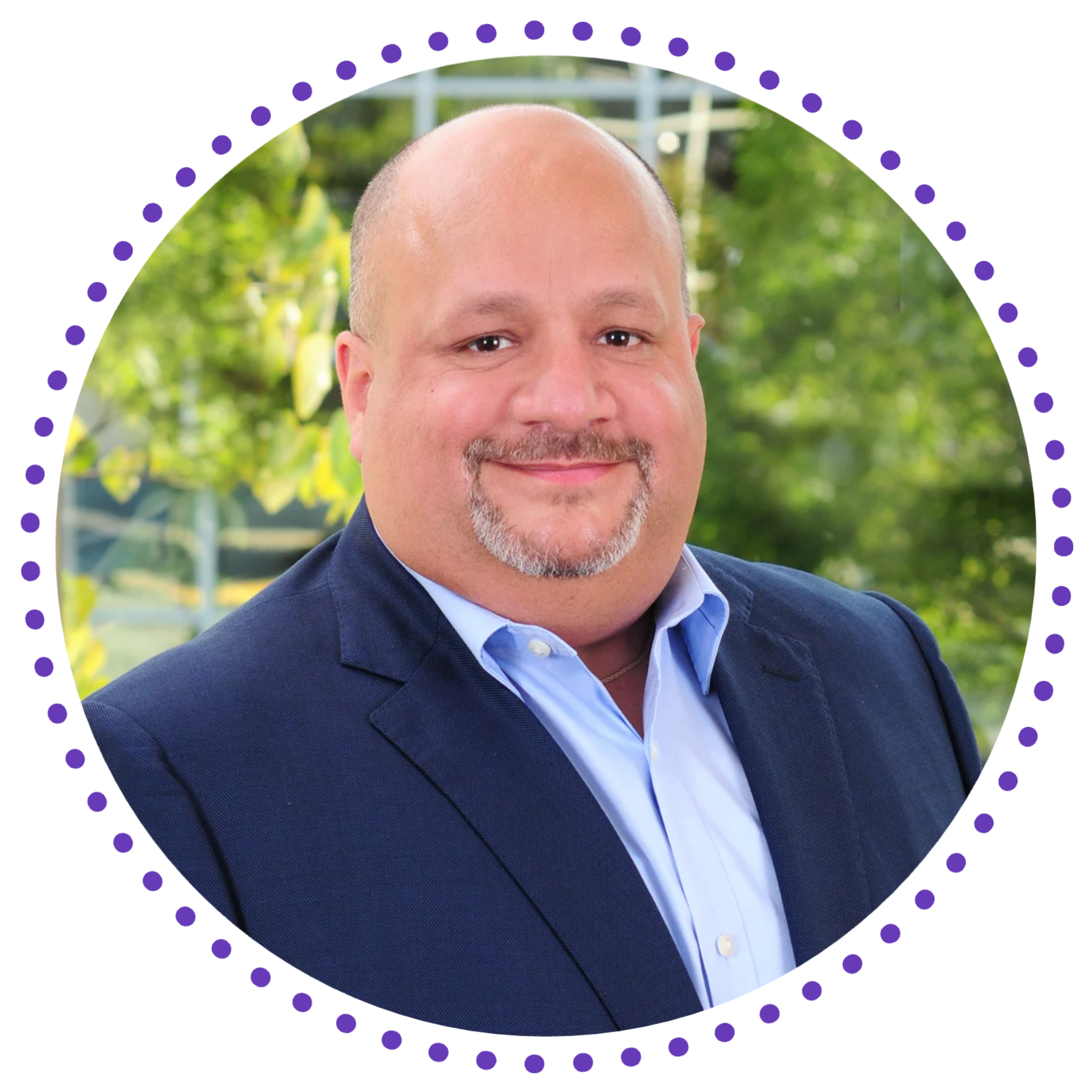
An accomplished enterprise information technology and security leader who designs and implements global digital strategies.
He always asks:
Why? What if? and So what?
trusted
passionate
flexible
trusted · passionate · flexible
coach · mentor · leader
Mentor and coach who attracts, retains, and develops high-performing talent encouraging individual entrepreneurship to realize a team’s full potential.

trusted
passionate
flexible
trusted · passionate · flexible
trusted · passionate · visionary
I build the systems that either make or save companies money.


Over 25 years of digital expertise in delivering eCommerce, Consumer Credit, payment processing, ERP integration, data warehousing, marketing, interactive, mobile solutions, social media, and sales reporting needs to increase revenue, streamline processes, provide bottom-line savings, and reduce risk. Successfully build highly productive and accountable teams to deliver complex, scalable, and flexible application workflow solutions.
Execution expertise in delivering Business & Product Development, eCommerce, Agile, DevOps, interactive, and mobile solutions deployed across varying markets for companies like PayPal, eBay, T-Mobile, Mercedes-Benz, Sharp, Lowe’s, Pepsi, Priceline, Bank of America, Kraft, AT&T, eMusic, MiMedia, and Thomson Reuters.
A practical technologist, mentor, and product development specialist; internationally recognized by leading publications and media for his innovative software designs and utilities and has managed large-scale Open Source user communities. As well as providing eCommerce, design, content management, and marketing solutions for several non-profit organizations, digital media, and retail startups.
What do you want to remember from 2020? How do you want your legacy to remember what you did for...
Photos by Mel Reyes
Change the Way You Think About Your Resume The number one obstacle that job seekers think they have is their...
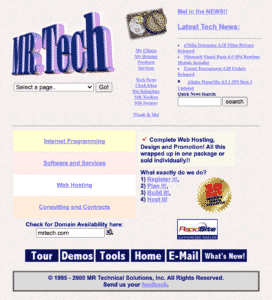
Inspired by a recent LinkedIn post, I decided to revisit my old haunts of sharing tools, enjoy! ⬇ MRTech.com circa...

Given the current turmoil in the job market, I wanted to make sure that the advice I had been sharing...

Whether hard or soft skills, if you are not learning you are losing out on expanding your mind and your...

To advance the mentoring series, I wanted to focus on one of the most underrated and unrecognized topics: Giving. There’s...

This will the first in a new series of posts that I’m creating to help folks at all stages of...
associations/achievements
Pace University Cybersecurity Program – Advisory Board Member
HMG Strategy Financial Services – Advisory Board Member
Society for Information Management (SIM) – Member
Tech Impact – NPO Advisory Board Member
Somers Chamber of Commerce – NPO Board Member
Fashion Your Passion Podcast – Advisor
Certified SAFe 4 Scaled Agilist
Certified Scrum Master (CSM)
Patent #9,183,232: “Systems and methods for organizing content using content organization rules and robust content information”
Patent #9,298,758: “Systems and methods providing media-to-media connection”
Patent #9,465,521: “Event based media interface”
Patent #10,257,301: “Systems and methods providing a drive interface for content delivery”
Author of the Hacking Firefox book
Mel clearly demonstrates all the key characteristics of a great leader. His honesty, enthusiasm, commitment and ability to inspire were evident in everything that was assigned to him and his team.
His multitasking skills are simply amazing. Mel managed to keep track on everything and yet leave enough room for the team to make their own contribution, getting involved just when it’s necessary. He is a brilliant communicator, focused on goals and results.
If you are building something new and revolutionary, Mel is the right guy to have on board. His creative guidance, ability to think out of the box and be on constant lookout for new opportunities can push your project beyond what you thought was possible.